Reading the schedule
The viewer schedule is focused on you. Your row is pinned to the top so your assignments are always in view without hunting.
Layout
- Your row (top) — your assignments, front and centre.
- Team peek (below) — the rest of the team, so you have context on who else is on what.
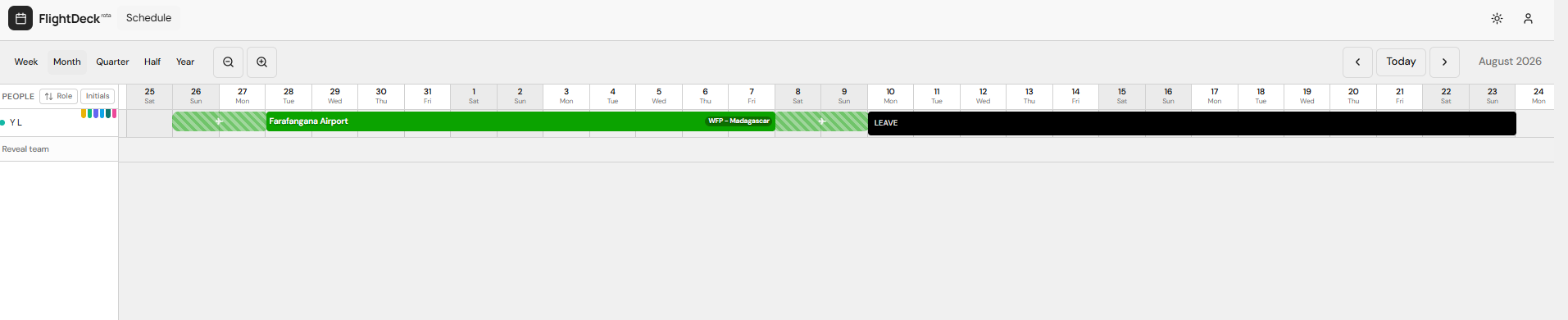
Snapped vs unsnapped
The timeline starts snapped to today, so the current date is always in view. To browse further into the past or future:
- Desktop: scroll horizontally on the timeline with your mouse wheel or trackpad.
- Mobile: swipe left or right on the timeline. Swiping automatically pops the timeline out of snapped mode.
Tap the snap icon (top-right of the timeline) to snap back to today.

Reading vs unread
New assignments are subtly highlighted until you open them. Tap a block to view details — it'll be marked as read automatically.
Next: Assignment details.