Your first look
Once you're signed in, installed, and notifications are on, you'll land on the schedule.
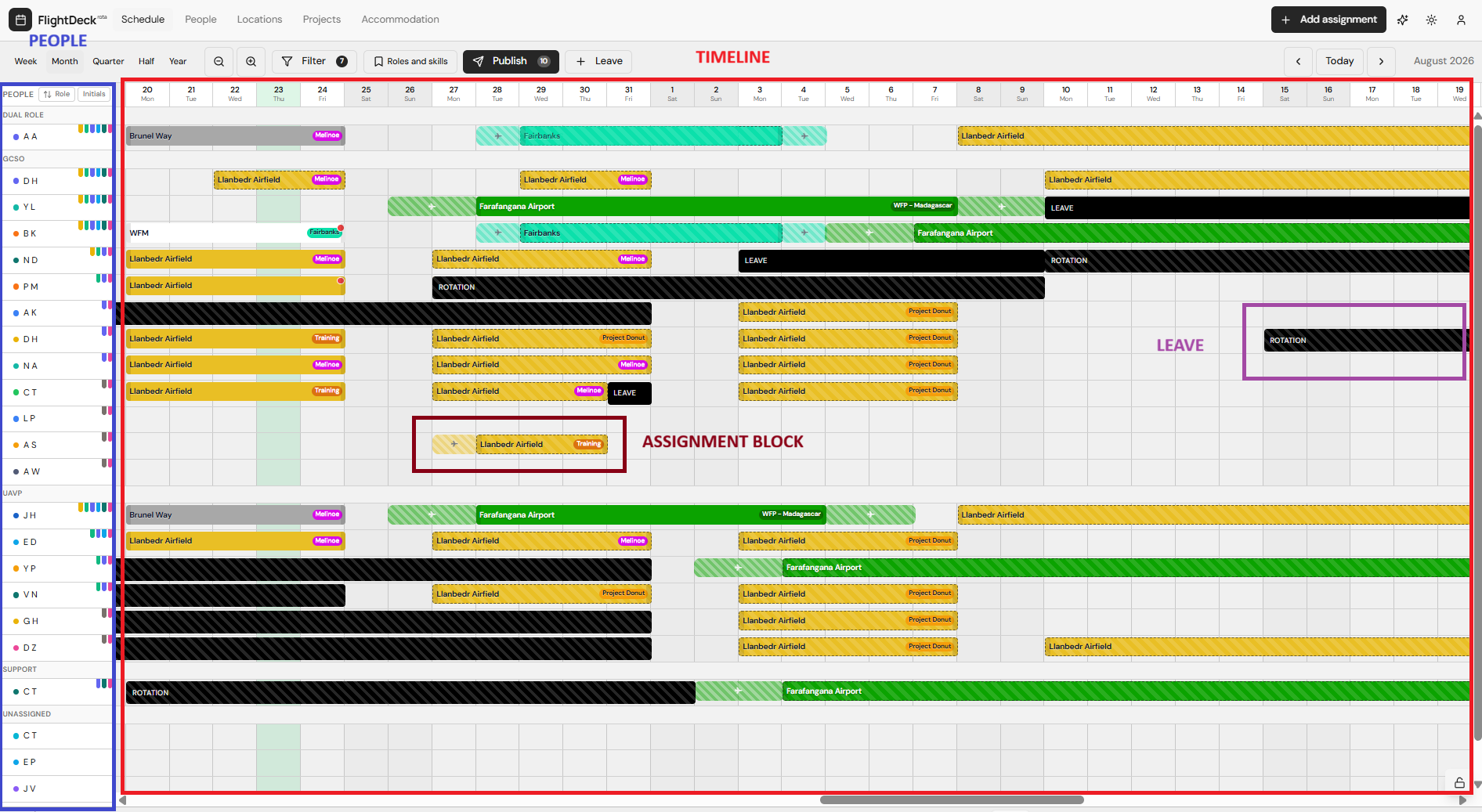
What you'll see
- Timeline: dates run across the top.
- People: names run down the left.
- Assignment blocks: coloured blocks on the timeline showing who is on what, where, and when.
- Leave: black blocks show approved leave or contract rotation weeks.
The basics
- Tap or click a block to see full assignment details (location, project, description, notes, addresses).
- Addresses can be tapped to copy or open directions.
- Description and notes open a full-screen reader on mobile.
- Blocks you haven't read yet are subtly highlighted — they're marked as read after you open them.
Where to go next
- If you're a viewer: Reading the schedule.
- If you're a manager: Creating assignments.
- If you're an admin: Users and roles.