Enable notifications
Notifications tell you when a new assignment is published, when your schedule changes, and when leave is approved. You must enable notifications to continue — the app blocks access until you do.
Turning them on
- Open FlightDeck (from the installed icon on mobile).
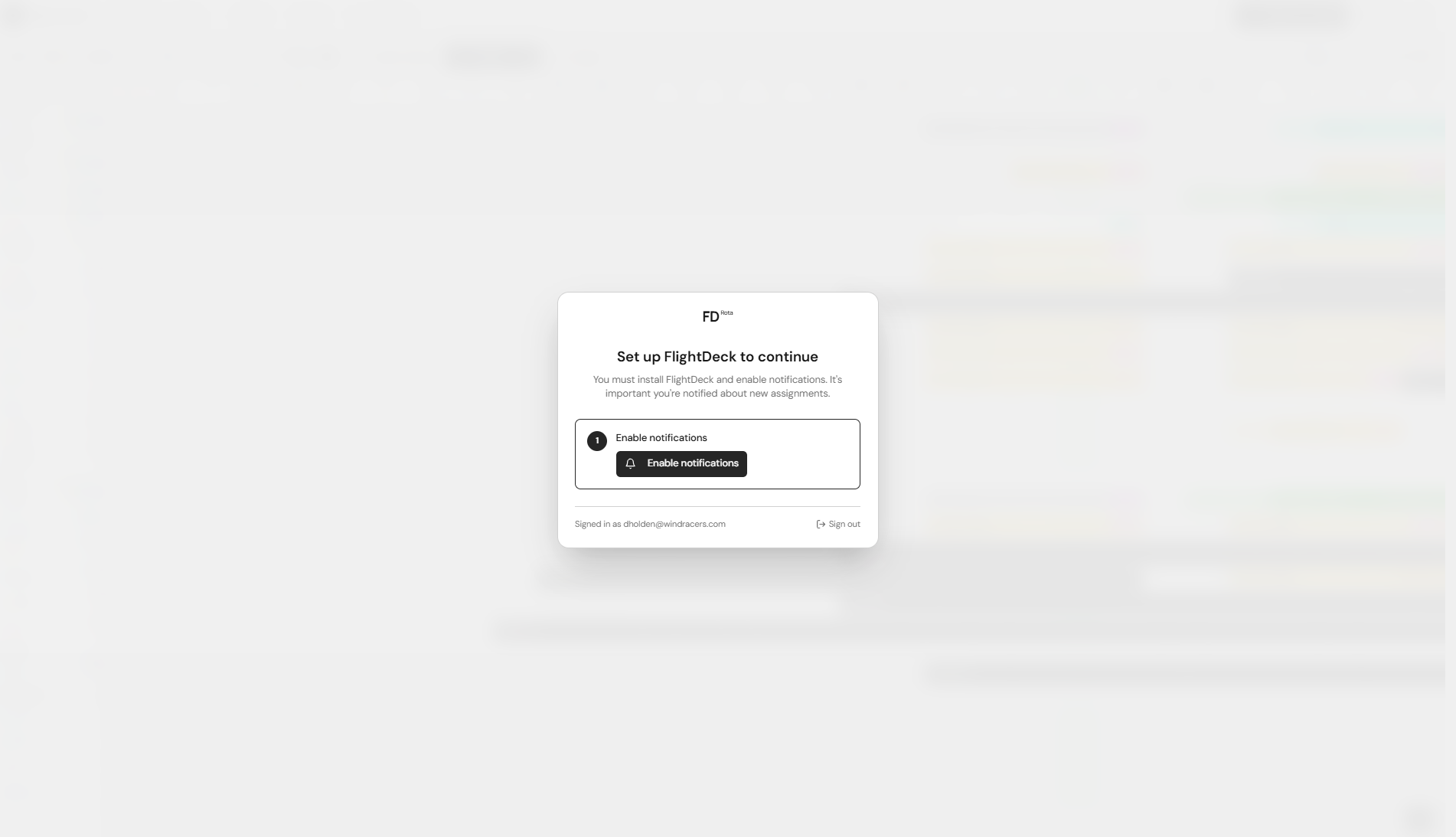
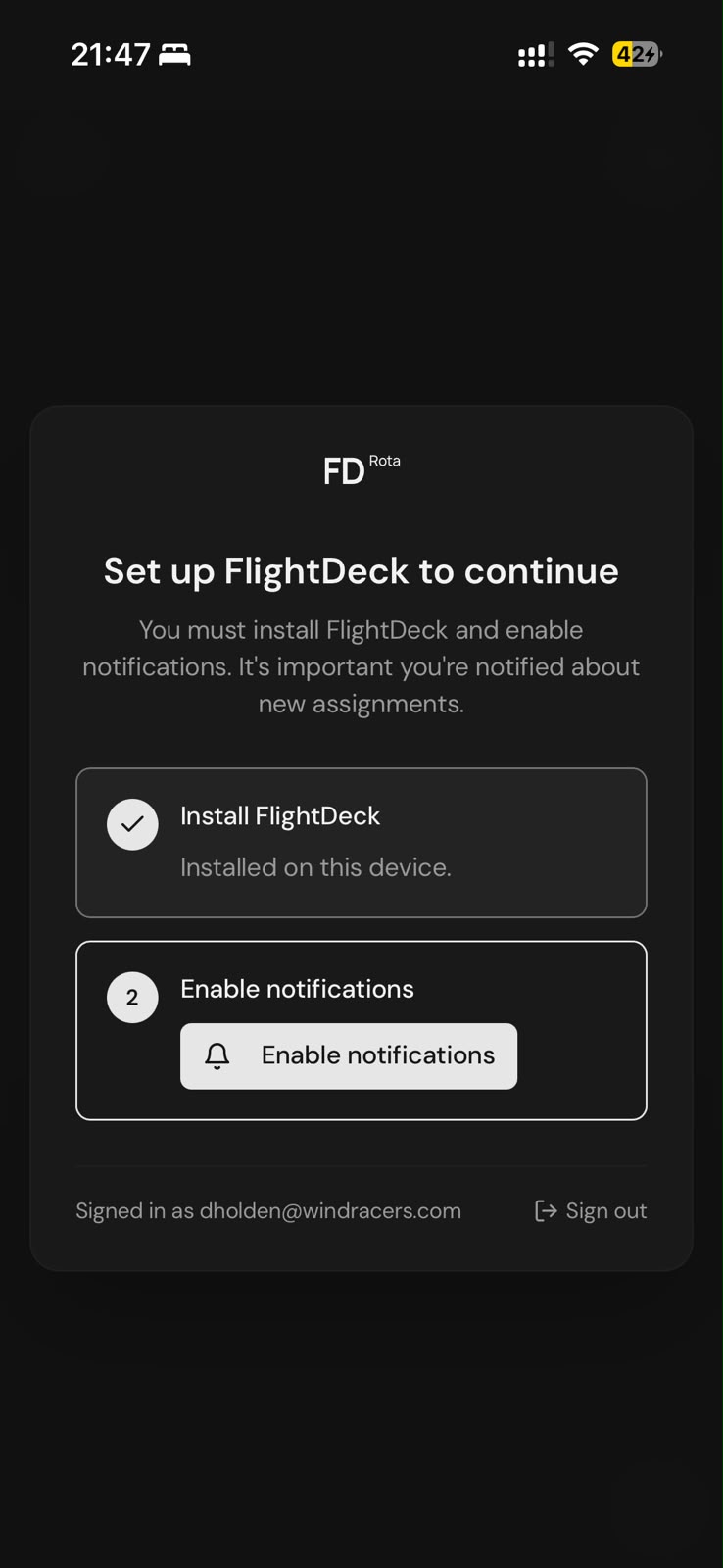
- You'll see the "Set up FlightDeck to continue" screen.
- Tap Enable notifications.
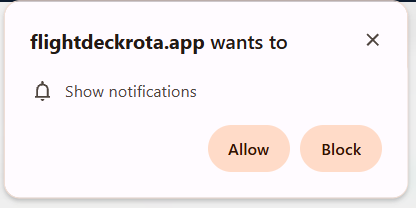
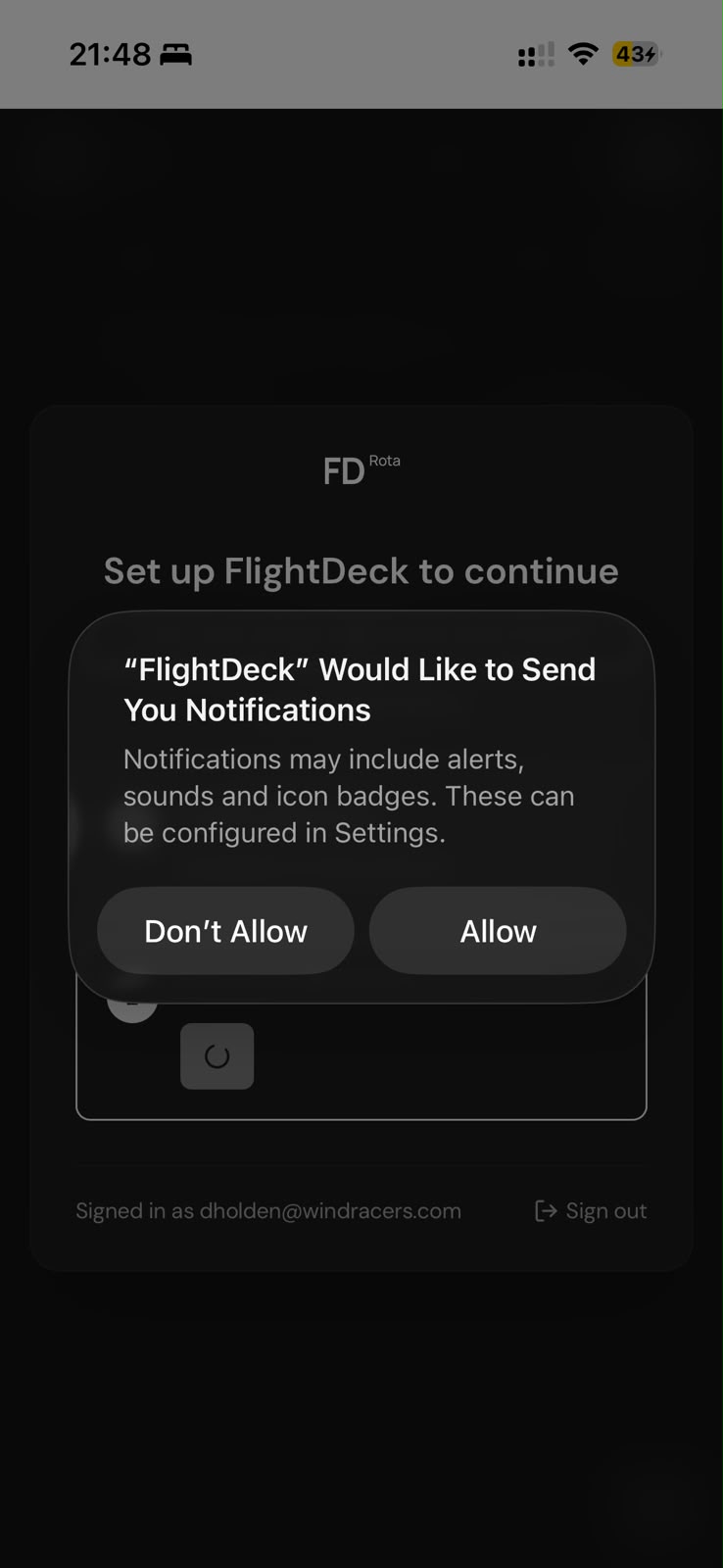
- Your browser will ask for permission — choose Allow.
That's it. You'll now get a push notification whenever there's something new for you.
Troubleshooting
"Notifications are blocked." You (or your browser) previously denied permission. To fix it:
- iPhone: Settings → Notifications → FlightDeck Rota → turn on Allow Notifications.
- Android (Chrome): open Chrome → tap the padlock next to
flightdeckrota.app→ Permissions → Notifications → Allow. - Desktop (Chrome/Edge): click the padlock in the address bar → Site settings → Notifications → Allow.
Then reload FlightDeck.
iPhone: notifications only work if installed. On iOS, push notifications require the app to be added to your Home Screen. Follow Install the app first, then open FlightDeck from the new icon.
"This browser doesn't support push notifications." Use Chrome, Edge, Firefox, or Safari (iOS 16.4+).
What notifications look like
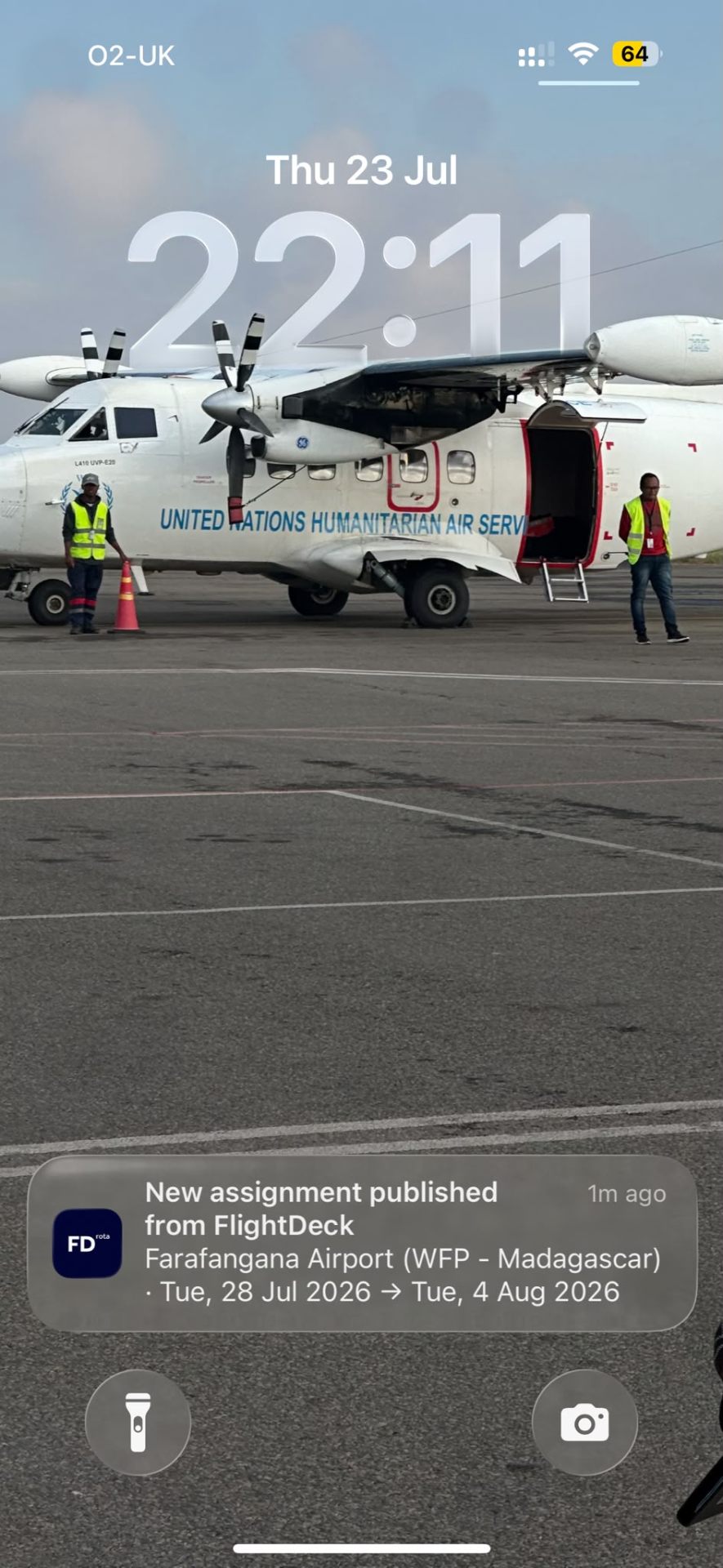
You'll get a short message like:
New assignment Farafangana Airport (WFP – Madagascar) · Tue 28 Jul → Tue 4 Aug 2026
Tapping the notification opens FlightDeck directly on the assignment.
Next: Your first look.