Install the app
FlightDeck Rota is a Progressive Web App (PWA). Installing it means:
- It runs like a normal app with its own icon.
- Push notifications are reliable (especially on iOS, where they only work once installed).
- It opens instantly, without a browser tab.
iPhone / iPad (Safari)
- Open https://flightdeckrota.app in Safari (not Chrome).
- Tap the Share icon at the bottom of the screen.
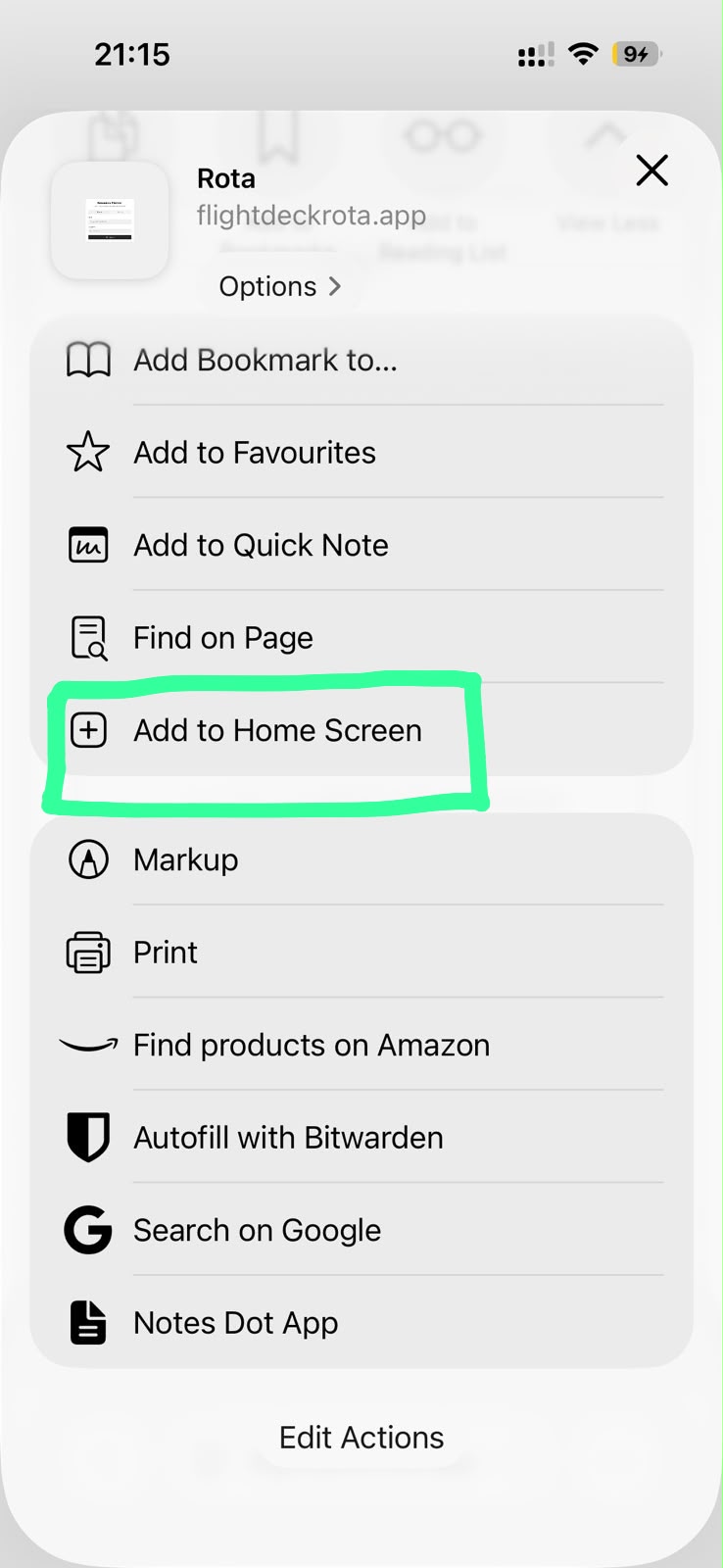
- Scroll down and tap Add to Home Screen.
- Confirm the name and tap Add.
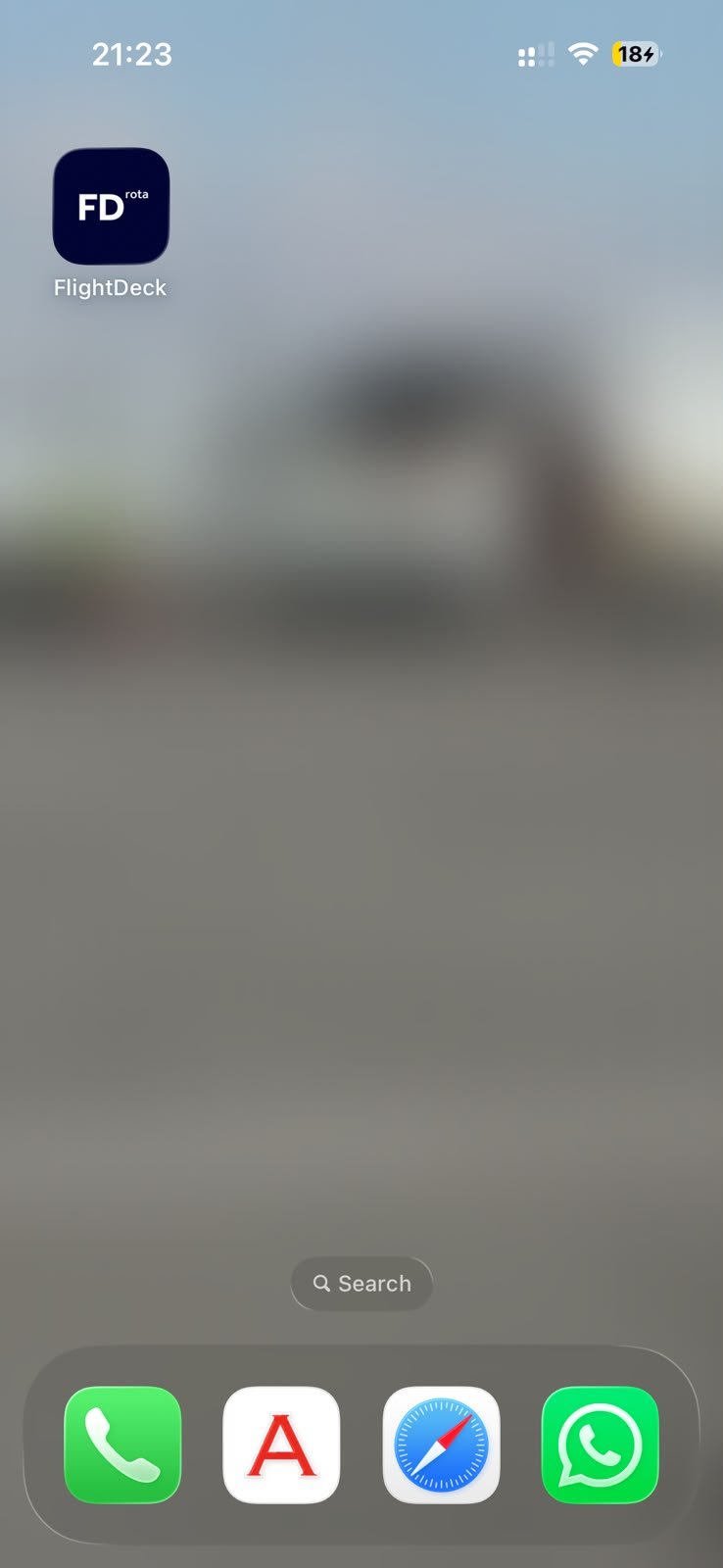
- Open FlightDeck from the new icon on your home screen.
Android (Chrome / Edge / Samsung Internet)
- Open https://flightdeckrota.app in your browser.
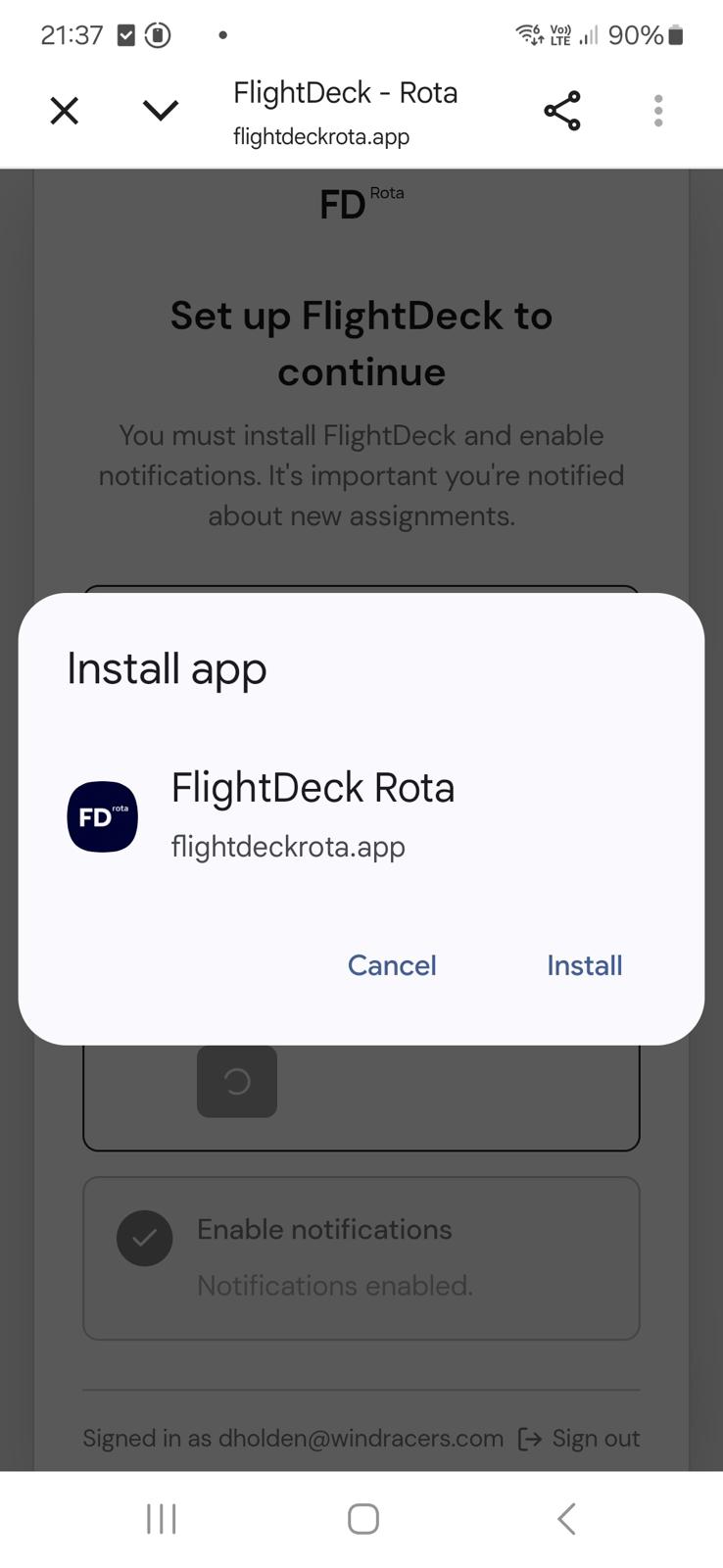
- You'll usually see a prompt to install the app — tap Install.
- If no prompt appears, open the browser menu (⋮) and choose Install app or Add to Home Screen.
- Launch FlightDeck from its new icon.
Google Play Protect warning? During install, Android may show a warning that this app hasn't been checked by Play Protect. This is normal for browser-installed web apps. Tap Install anyway.
Desktop (Chrome, Edge)
- Open https://flightdeckrota.app.
- Click the install icon in the address bar (a small monitor with a down arrow), or open the browser menu and choose Install FlightDeck Rota.
- The app opens in its own window and appears in your Start menu / Dock.
Desktop install is optional — the site works fine in a browser tab — but installing gives you an app icon and cleaner window.
Next: Enable notifications.